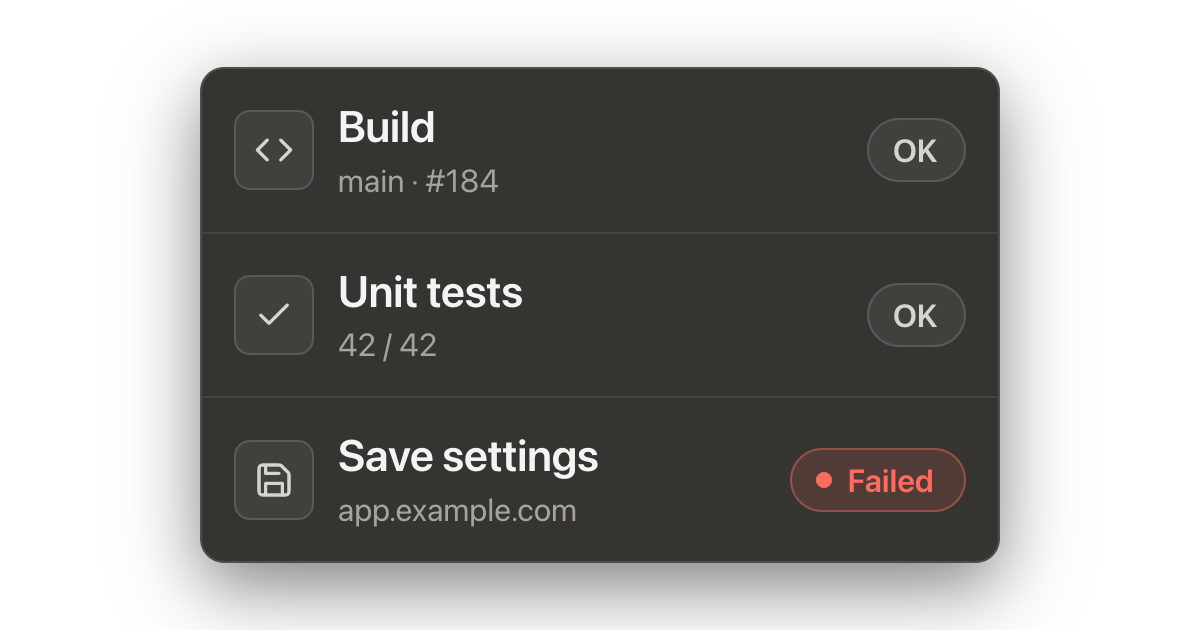
The build passed. The settings didn’t save.
Consider a simple scenario in a SaaS application. Customers ask for a simpler team settings form. A developer describes the change to an AI assistant. A few iterations later, there’s a new layout, validation, and a working Save button. The build passes. So do the unit tests.
After deployment, someone changes the team name and clicks Save. A “Saved” message appears, and the field still shows the new name. Everything looks fine. Only when they reopen the page does the old name return.
What went wrong? The form updates its state on screen but sends the team name to the API under the wrong key. The API ignores the unknown field but still returns a success response. The component test uses a mocked API response and checks whether the success message appears. It doesn’t verify that the data was actually saved and can be read back.
Either a human or an AI could make this mistake. But if an AI assistant helps a team ship changes faster and more often, the amount of verification needed grows too. Manually checking that a success message appears after clicking Save isn’t enough.
More changes, more checking
Writing code is one part of the work. Each change still needs to be understood, reviewed, tested, and deployed. Then you need to know whether it works in the environment your customers use.
In a small team, the same person often handles all of this. AI helps them rebuild the form, so they move on to the next feature. Checking sign-in, settings, and registration gets pushed back. With every deployment, the list grows.
DORA points out that working in small batches is especially important when using AI coding assistants. Large blocks of generated code are harder to review, test, and integrate. Smaller changes shorten the path to finding out whether you achieved the intended result.
For the form, that means changing its layout separately from the way it saves data. Each one is easier to check on its own, and if something breaks, you know right away which change caused it.
The bottleneck isn’t the same in every team. If tests and reviews keep pace with development, more changes don’t have to mean a growing queue of work to verify. Check at which stage work stalls in your team: while preparing code, while waiting for review, or before the manual test that precedes deployment. Count how many fixes you only make after a customer reports a problem, too. This will help you choose the first flow to automate. If someone checks the same form after every change, you have a concrete starting point.
AI can write the tests too
In the Stack Overflow Developer Survey 2026, 58.1% of respondents who answered that question said they use AI to write or improve tests. That measures reported usage, not the effectiveness of the generated tests.
AI can help prepare edge cases, test data, or a regression test that reproduces a reported bug. You still need to decide what the correct result should be. A test based on the current implementation can end up confirming the very behavior you need to fix.
For our form, the requirement is: “After saving a name and reloading settings, the user sees the new name.” A “Saved” message alone doesn’t meet that requirement. Write that sentence before making the change, then use it when reviewing both the code and the tests.
What to check at each level
Each level answers a different question. Here’s an example split for the settings form:
| Level | What to check | What it won’t prove on its own |
|---|---|---|
| Unit test | Name validation and the correctness of the data prepared for submission | Whether the server actually saves the data |
| Integration test | Saving data through the API and reading back the new value | Whether a user can perform these actions in the form |
| Browser test | Sign-in, changing the name, saving, and displaying the new name after reopening settings | Whether the form works for every combination of data and permissions |
| Monitoring after deployment | Whether the chosen flow keeps working across repeated runs | Whether scenarios not covered by monitoring also work |
A browser test can exercise several application layers together. Its coverage still depends on the steps and checks you prepare. Here, you need to check the value after the data is loaded again, as well as clicking Save.
How to use TestCLIX
With TestCLIX, you record a flow in a cloud browser, add checks, and return to the same scenario after further changes. You don’t need a separate script to repeat the clicks.
For the example form, prepare this sequence:
- Sign in with a test account. Open settings for a dedicated team that customers don’t use.
- Establish a known starting state. Save “Team A” as the name and check the success message. This ensures the next step actually changes the name on every run, and a failed setup stops the test.
- Change the name to “Team B”. Save the form and check the success message.
- Sign out and sign in again. A new session makes the app load the settings from the server instead of showing what was left on screen after saving. Open the team settings and add a text check on the element that shows the team name, with “Team B” as the expected value. This is the step that should catch the old value returning.
- Restore the initial name. Step 2 sets it again anyway, so the test still works even if a previous run was interrupted before the initial state was restored.
You can run the scenario manually, for example right after a deployment, or through the API as a step in your CI/CD pipeline. You can also set a schedule so the test checks the form between deployments too, from every 5 minutes to once a day.
Triggering a run through the API takes a single request, which you can add as the last step of your deployment:
curl -X POST "https://api.testclix.com/v1/api/execute/$TESTCLIX_TEST_ID" \
  -H "x-api-key: $TESTCLIX_API_KEY"
The API queues the test and doesn’t wait for the result, so it doesn’t slow down your deployment. The result appears in the run history, and if the test fails, you get an alert.
Choose an alert channel, such as Slack or email. When a test fails, the Session Player lets you inspect the run and compare it with the reference recording. You get the step and screen from which to begin investigating.
What still needs other tests
A recorded flow covers only the selected scenario. Successfully saving a name doesn’t prove that a user can’t change another team’s settings. Verifying permissions and other security aspects requires separate tests.
Other inputs, API errors, interrupted connections, and concurrent edits still need coverage. Include them in the appropriate unit, integration, and exploratory tests. Use load tests to check performance under heavy traffic.
TestCLIX helps you regularly check selected application behaviors. That way, verifying an important form after the next change doesn’t depend entirely on someone finding time for it.