


Silent failures in the checkout
The store loads, product pages open and the sale banners are visible. The problem only shows up when someone tries to buy. On a phone, the discount code pop-up covers the checkout button. A customer types in the BF30 code from the banner, but the store rejects it because the discount was set to start on Saturday instead of Friday. Or the pickup-point map doesn't load at all.
You can't rely on a customer to report the problem. They may simply leave. It's also easy to miss a failure if you only check the store on a laptop and never try a discount code. When a campaign attracts more customers, a delay in spotting the problem can mean more lost orders.
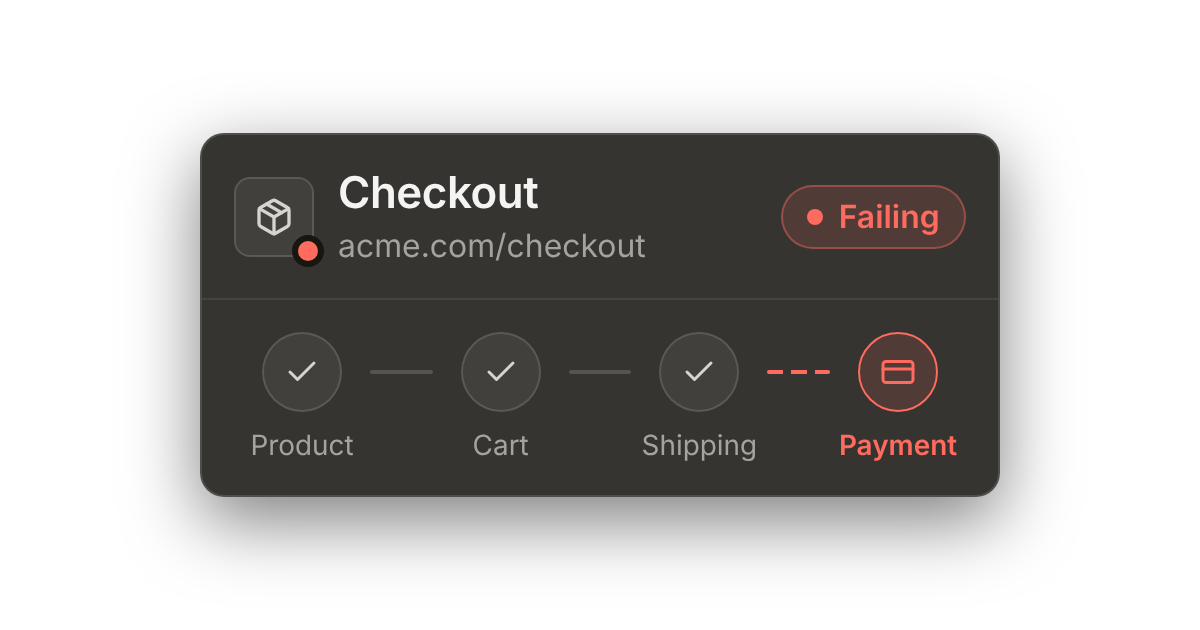
Preparing for a sale often means new banners, pricing rules, ad scripts and plugin updates. Some of those changes can affect checkout. Walk through the flow after deployment, then check it regularly with a browser test. The test can repeat your chosen steps every few minutes and send an alert when one stops working.
The checklist
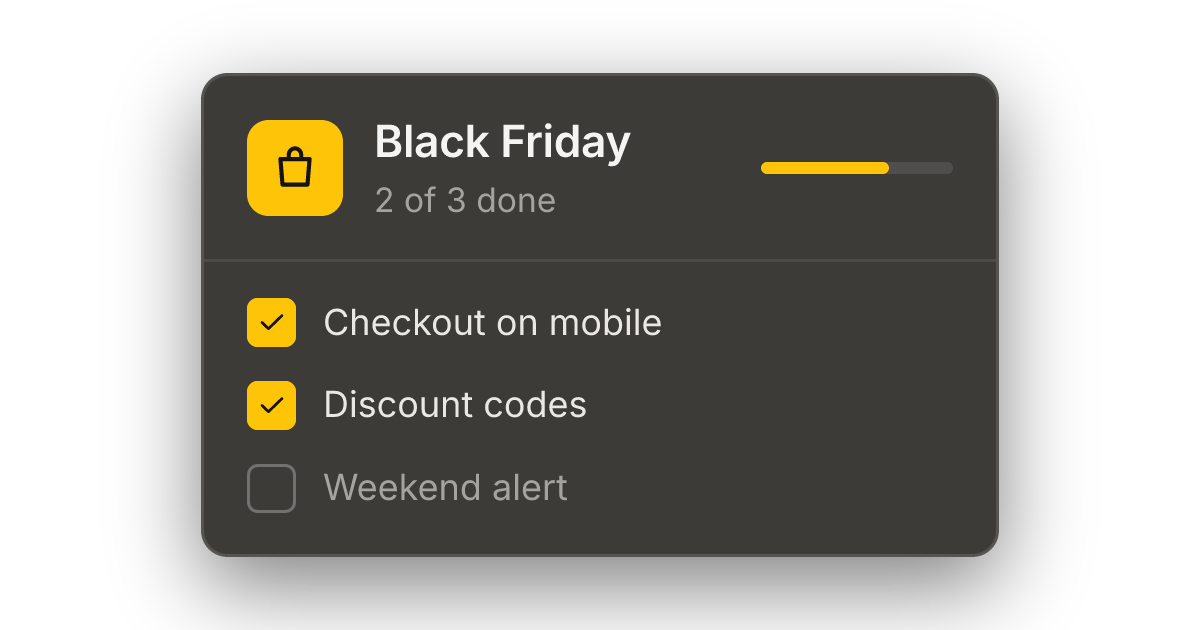
Short on time? First check that customers can proceed to payment and use a discount code, and that error notifications reach someone who can act on them. Adjust the dates below to your sale's start date.
Now (2 to 3 weeks out)
- Choose the main flow to check: product, cart, shipping and the payment page. Include guest checkout if you offer it, then cover sign-in and the discount code.
- Record your tests and run them a few times before making changes for the sale. Decide where each test should stop, and check that it doesn't leave unpaid orders or reserve stock.
- Set a change-freeze date after the sale setup has been deployed and checked. After that, deploy only essential fixes.
- Check when your store's SSL certificate expires. Include critical third-party domains, such as those serving payment scripts or the pickup-point map.
- Decide who will respond to alerts during the sale weekend, who will cover for them and how to reach both people. Choose a channel with phone notifications, such as Slack or Telegram.
One week out (by November 20)
- Deploy the banners and sale page, and schedule discount codes to activate at the right time. Run your recorded tests after each change. Once visual changes have been reviewed and approved, update the screenshot baselines.
- Check discount codes for start and end times, the store's time zone, usage limits, minimum spend and excluded products.
- Before launch, use a test environment to check that the code applies the exact discount advertised. Prepare a test that checks the code is accepted and a discount appears in the order summary. Enable it once the code is active. A lower order total alone doesn't mean the discount was calculated correctly.
- Check the store at a mobile screen size too, and set up a separate test for it. Also walk through checkout on a real phone, especially shipping selection and the transition to payment.
- Measure the sale page's performance after adding banners and scripts. Large images can delay the largest content element appearing on the page (LCP).
- Check that the sale page shows the right offer and its button leads to the intended product or category. If you use a countdown, check its end time and what the page does when the sale ends.
The day before (November 26)
- Set a schedule that suits your traffic: for example, checkout every 5 minutes and availability checks on key pages every minute. If many customers buy on phones, run the mobile-layout test just as often.
- Review your alert threshold. Requiring 2 failures in the last 3 runs filters out isolated failures but delays notification. With tests every 5 minutes, a persistent failure can mean waiting roughly 5–10 minutes for the second failing run to start, plus test execution and notification time.
- Check that alerts reach the right person. Use a copy of the test with a deliberately failing check and a threshold of 1 out of 1, keeping the same notification channels. Delete the copy afterwards.
- Walk through checkout manually once more and confirm that scheduled prices and codes will activate at the intended time.
During the sale (November 27 to 30)
- Deploy only essential fixes. Run your recorded tests after each one.
- When an alert arrives, replay the failed run to see where it stopped. That can help you narrow down the problem before checking logs.
- Run your recorded tests as soon as the sale starts and after every scheduled price change, such as the switch to Cyber Monday offers. Check the actual discount amount too.
After the sale
- Take down banners and disable codes. Check that prices are back to normal.
- Disable or update promotional-code tests and refresh screenshot baselines. The planned end of a sale shouldn't trigger failure alerts.
- Bring test frequency back to your usual level.
- Write down what broke and how you found out. Next year that note will be worth more than this list.
How to set it up in TestCLIX
Here's an example setup for the sale. Adjust the schedule to your traffic and how quickly you need to detect a problem:
| What we check | Test type | How often | Check |
|---|---|---|---|
| Product, cart, shipping, payment page | Scenario | Every 5 minutes | The correct payment page opens after shipping is selected |
| The same flow at mobile screen width | Scenario | Every 5 minutes | Buttons can be used and the payment page is reached |
| Discount code | Scenario | Every 15 minutes | The code is accepted and a discount appears in the order summary |
| Sign-in | Scenario | Every 15 minutes | An element available only after sign-in, such as a sign-out button |
| Homepage, sale category page, cart | Availability | Every minute | Status 200, response time, SSL certificate |
| Sale page | Vitals | Daily | LCP, CLS, Lighthouse score |
For AI checks, consider what is visible in the selected screen region. Comparing prices before and after a discount requires access to both amounts; don't assume the assistant knows a value from an earlier step. Use AI as a supporting check and verify the calculations separately.
Pitfalls before a sale
- Reaching payment is only part of checkout. Stop production tests before a charge is made. Check whether opening the payment page creates an unpaid order or reserves stock; if it does, account for cleanup or expiry. Test payment completion and order confirmation separately, using the provider's test mode in a test environment.
- A product for monitoring. Choose a product with enough stock and decide when to replace it in the scenario. A sold-out item can interrupt the test even when checkout works, triggering a false alarm about a technical failure.
- Changing prices. If you aren't checking a specific amount, use Ignored Zones to exclude changing prices from screenshot comparisons. Verify the expected price separately when the sale starts and whenever the offer changes. Excluding a price from comparison doesn't confirm that it's correct.
- A test account. Use a dedicated account with only the permissions it needs. Keep passwords out of test names and descriptions, and check that they aren't visible in screenshots.
What this list doesn't cover
- Performance under load. Monitoring goes through the flow as one customer every few minutes. It won't tell you what happens with 10,000 customers at once. That's what load tests (for example k6, JMeter or Gatling) run before the sale are for.
- The full payment process and provider reliability. A test that stops when the payment page opens can detect problems reaching it, but won't confirm payment authorization or order status updates. Plan for a provider outage too, for example with an alternative payment method, and check that option before the sale.
- Warehouse and shipping problems. The flow can work perfectly and orders can still ship late.